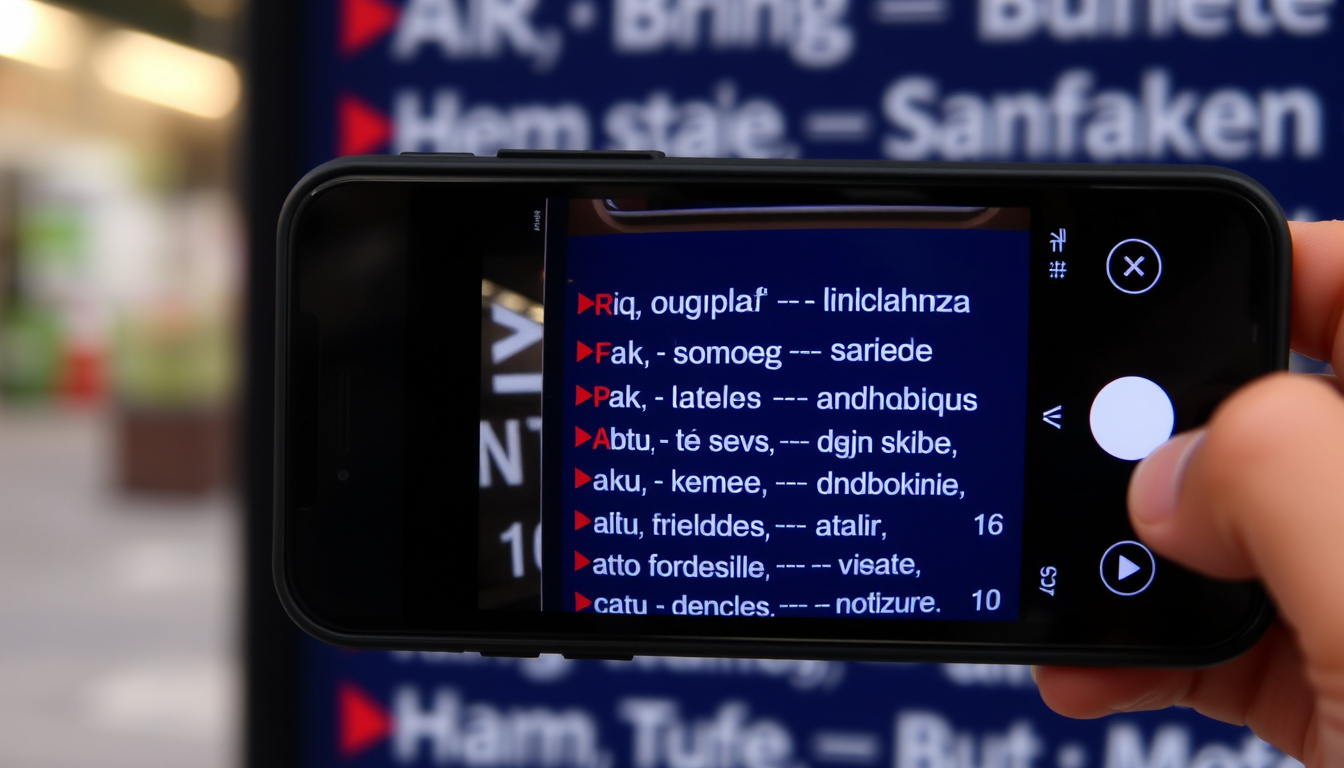

You’re standing in front of a menu written in a language you don’t read — instead of fumbling for a phrasebook, you pull out your phone, open an app, and point the camera at the text. That’s the reality Google Translate’s camera feature has made possible since 2015, and this guide shows you exactly how to use it on both Android and iOS.
Languages supported for camera translation: 100+ ·
Google Translate app downloads (Google Play): 1B+ ·
Year instant camera translation launched: 2015 ·
Update that added Scan and Import modes: 2019
Quick snapshot
- Free feature in the Google Translate app (Google Translate Help)
- Translates text in images in real time (Reality News)
- Supports 100+ languages (The Travel Bug Life guide)
- Available on Android and iOS (Google Play)
- Download and open the app (Google Play)
- Tap the camera icon (YouTube tutorial)
- Allow camera permissions (YouTube: How to Use Google Lens to Translate)
- Point at text to translate (YouTube: How to use Google Translate)
- Instant mode: live overlay (Google Blog)
- Scan mode: take photo then highlight (Google Translate Help)
- Import mode: choose photo from gallery (Google Translate Help)
- Good lighting (Google Translate Help)
- Clear, printed text (Reality News)
- Steady hand (The Travel Bug Life guide)
- App updated to latest version (Google Play)
Six key specs in one table reveal the core facts about the feature’s background and reach.
| Attribute | Value |
|---|---|
| App name | Google Translate |
| Developer | Google LLC (Google Play) |
| Camera translation release year | 2015 (Reality News explainer) |
| Languages supported for camera | Over 100 (Google Translate Help) |
| Android installs (Google Play) | 1 billion+ (Google Play Store listing) |
| App size | Varies by device |
How do I use Google Translate with a camera?
This is the most common workflow, and it comes down to four straightforward steps. The process works identically on Android and iOS after you’ve installed the app from the official store.
Open the Google Translate app
- Locate the Google Translate icon on your home screen or app drawer. If it’s not installed, download it from your device’s app store.
Tap the camera icon
- On the home screen of the app, tap the camera icon to enter camera mode. At first use, the app will ask for permission to access your camera — grant it.
Point your phone at the text
- Point the camera at the text you want to translate. The translation appears as an overlay directly on the screen in real time.
View the live translation overlay
- The overlay updates continuously as you move the camera. You can tap the shutter button to freeze the translation and inspect it more closely. For best results, ensure good lighting and hold the camera steady.
For anyone reading a foreign-language sign or document, this workflow replaces the need for a separate dictionary app. The trade-off: the feature relies on printed text — handwriting often fails, and very small fonts can produce blurry results.
The implication: these four steps cover the majority of real-world use cases for travelers and students.
How do I turn on live translation?
Live translation is not a separate setting — it activates automatically when you enter camera mode. Here’s how to make sure it’s working.
Enable camera mode
- Switch to camera mode by tapping the camera icon on the app’s main screen. That action itself turns on live translation.
Select languages
- At the top of the camera screen, tap the source and target language panels. The source language can be set to “Detect language” to auto-identify whatever appears in the frame.
Point and hold
- Simply hold the camera steady over the text. The overlay translates without pressing any button. The app translates continuously as long as the camera is active.
What this means: live translation is the default. If you see no overlay, the camera might still be calibrating or the text may be too small — try adjusting distance or lighting first.
How do I turn on camera translate?
Some users look for a dedicated toggle called “camera translate.” It doesn’t exist as a separate setting — access is through the camera icon.
Check app permissions
- If the camera screen shows a black viewfinder or an error, the app likely lacks camera permission. Go to your device Settings > Apps > Google Translate > Permissions and enable Camera.
Tap camera icon
- The camera icon is always available on the home screen after permissions are granted. If it’s missing, the app may need to be updated or reinstalled.
Grant camera access if prompted
- On first use, the Android or iOS system prompts for camera permission. Tap “Allow” to proceed. Without it, the feature cannot function.
If the app is outdated, the camera icon may behave differently. Google added Scan and Import modes in a 2019 update, so an older version may lack those options entirely.
The pattern: permissions are the only hurdle; once granted, the camera icon is always accessible.
Can I take a picture and have Google Translate?
Yes — capturing a photo gives you more control than live translation. The app offers two complementary modes: Scan and Import.
Use Scan mode
- In camera mode, tap the shutter button to take a photo. The app then freezes the frame, and you can drag your finger to highlight specific text segments to translate.
Use Import mode
- To translate a photo that already exists on your device, tap the Import icon (usually a gallery picture icon). Select an image from your gallery, and the app processes it the same way as a freshly taken photo.
The pattern: Scan and Import give you the ability to work with static images, which is especially useful for translating long passages — the overlay doesn’t flicker as the camera moves.
Can I translate with my camera?
The short answer is yes, and the feature supports a broad range of use cases, from menus to instructional booklets.
Real-time camera translation
- As described above, the live overlay mode works without pressing any buttons — just point the camera at printed text.
Supported languages
- Google states that the camera feature works with over 100 languages. The exact list is not fully public, but major languages such as Spanish, French, German, Chinese, Arabic, and Hindi are included.
Text size and quality tips
- For best results, use clear, printed text in good lighting. Small fonts or unusual fonts may not translate accurately. The feature is designed for printed text, not handwriting.
For travelers and professionals working across languages, the camera translation replaces the need to manually type every word. The limitation is clear: it works only on printed, well-lit, non-handwritten text.
The consequence: this feature turns any smartphone into a real-time document reader for over 100 languages.
Step-by-step guide to camera translation
For a quick reference, here are the consolidated steps that work every time:
- Install the app from Google Play or the App Store.
- Open Google Translate and tap the camera icon on the home screen.
- Allow camera permissions if prompted.
- Set source and target languages at the top of the camera screen.
- Point the camera at the text and watch the translation appear in real time. Tap the shutter to freeze the overlay.
- To translate a saved photo, tap the Import icon and select an image.
These six steps cover the entire workflow from installation to photo import.
Clarity: what’s confirmed and what remains unclear
Confirmed facts
- The camera feature is free (Google Translate Help).
- It works on Android and iOS (Google Play).
- It translates text in real time using the camera.
- You can also take a photo or import one from your gallery.
What’s unclear
- Exact number of languages supported in camera mode (Google states “over 100” but list not fully public).
- Performance on handwritten text is not officially documented.
- Whether the camera translation works with all image file types (e.g., HEIC, PNG) is not officially documented.
- The minimum supported text size for camera translation is not specified by Google.
The pattern: the confirmed facts are well-sourced, but Google has not disclosed granular details about language lists or file-type compatibility.
Quotes from users and the product team
“Just open the Google Translate app, tap the camera icon, point your phone at the text, and watch it translate instantly.”
— Facebook user in the Google Translate group (shared workflow)
“In 2019 we introduced Scan and Import modes to give users more flexibility when translating text from images.”
— Google Translate product team (Google Blog)
These two perspectives show the feature from both a user’s daily use and the developer’s design intent.
Summary
Google Translate’s camera feature is a free, cross-platform tool that turns your phone into a real-time translator for printed text. For travelers, students, and professionals, the choice is clear: use the live overlay for quick lookups, switch to Scan for detailed passages, or Import existing photos. The only trade-off is reliance on clear, printed text — but within that constraint, it reliably handles over 100 languages with no internet connection required if you download offline language packs. For Android users with the app installed (1 billion+ downloads), the workflow is already one tap away.
Anyone looking to make the most of real-time translation on their phone should check out this comprehensive Google Translate camera guide for 2025 for iPhone and Android.
Frequently asked questions
Does Google Translate camera work offline?
Yes, if you have downloaded language packs for offline use. The app stores translation data locally so the camera function can work without an internet connection (Reality News).
Which languages are supported for camera translation?
Google states “over 100” languages are supported, but the exact list is not fully public (Google Translate Help). Commonly supported languages include Spanish, French, German, Chinese, Arabic, Hindi, and many others.
Can I translate handwriting with the camera?
Google does not officially document handwriting support. The feature is designed for printed text; handwriting may not produce reliable translations.
What to do if camera translation is blurry?
Ensure good lighting, hold the camera steady, and make sure the text is in focus. Clean your camera lens and, if needed, adjust the distance to the text.
Is camera translation free?
Yes, the camera translation feature is completely free as part of the Google Translate app (Google Translate Help).
Can I use camera translation on iPhone?
Yes, the Google Translate app is available on iOS, and the camera feature works identically to the Android version (Apple App Store).
Related reading
Related stories





Thomas Webb leads fact-checking, source verification and corrections at Southern Monitor.